Test your QR code before you print
Updated
A pre-print checklist for QR codes. Scan on iPhone and Android, at real size and distance, check the destination, and keep it working afterwards.
A mistake in a QR code costs nothing to fix on screen and a full reprint once it is on paper. A few minutes of testing catches almost all of them. Work through this checklist with the final file, before it goes to the printer and again when the proof comes back.
1. Scan on more than one phone
Different phones read codes with different software. A code that scans instantly on one can struggle on another.
- An iPhone, using the built-in Camera app.
- An Android phone, using the camera app or Google Lens.
- An older or cheaper phone if you can borrow one. Lower-quality cameras are where marginal codes fail first.
If a code only scans after a few seconds of holding still, treat that as a failure. People give up faster than you will.
2. Test at the real size, not on a screen
A code on a laptop screen is backlit, sharp, and usually far larger than the printed version. It tells you the code contains the right link and very little else.
- Print the code at its final size, ideally on the final material.
- If a proof on the real stock is not possible yet, print at actual size on paper and scale nothing.
- Check that the blank border around the code survived the layout. Designers sometimes crop it to fit. See the print size guide for why it matters.
3. Scan from where people will stand
Hold the proof where it will be seen, or tape it to a wall, and scan from the real distance.
- A poster read from across a room needs to scan from across a room, not from 20 cm away.
- Try an angle as well as straight on. Signs are rarely seen head-on.
- For anything mounted high or low, such as a shelf label or a window sticker, scan from where a person's phone would actually be.
4. Scan in the real light
- Dim light, for restaurants, bars, and events in the evening.
- Direct sunlight and glare, for outdoor signs and glossy or laminated print.
- Behind glass, for window displays, where reflections can hide part of the code.
5. Check where the scan lands
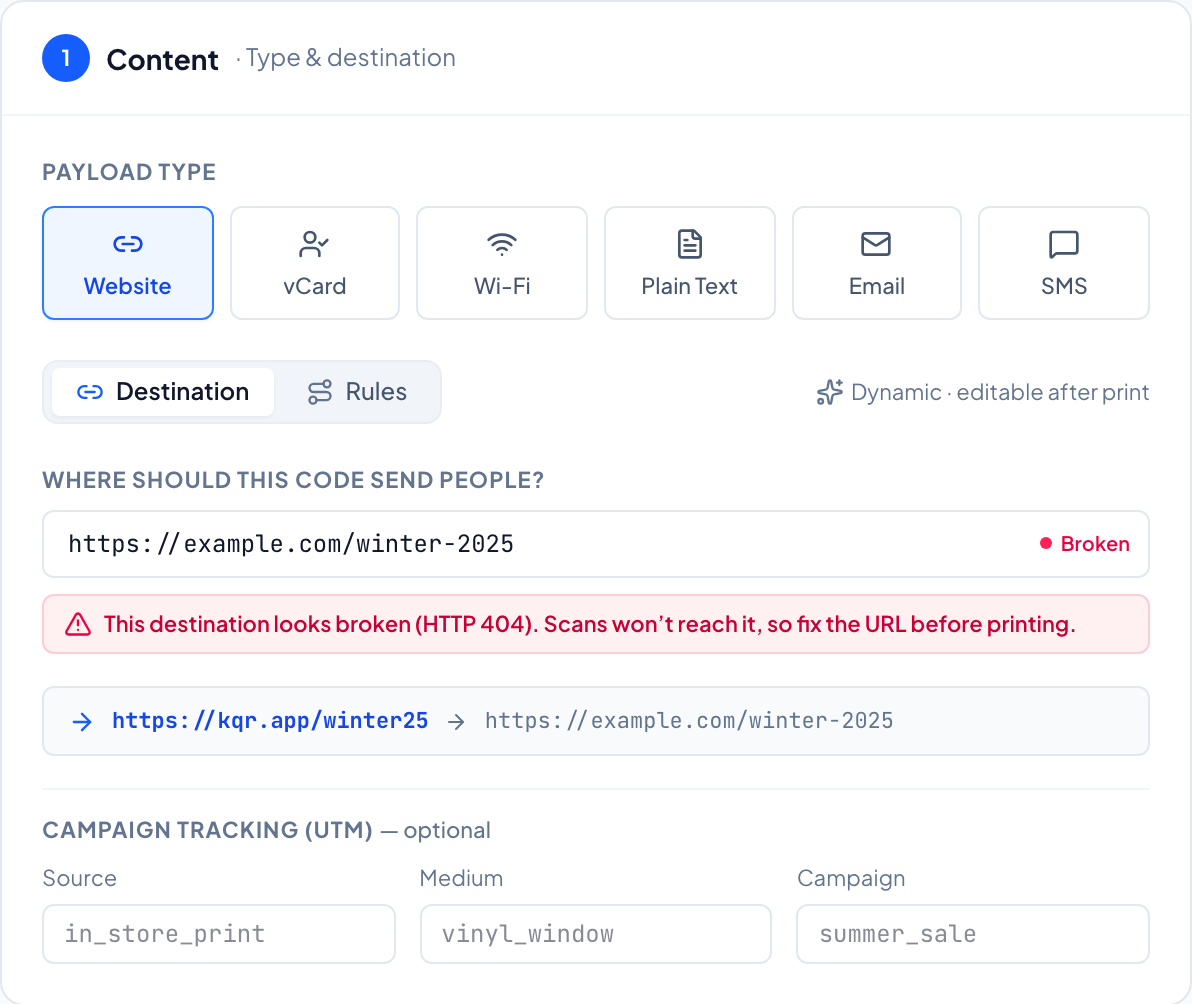
A code that scans perfectly is still broken if it opens the wrong page.
- Is it the right page? Not the homepage when the sign says "menu", and not a staging or draft link.
- Does it load on mobile data? Turn off Wi-Fi. Office networks can reach pages the public cannot.
- Is it usable on a phone? No login wall, no pop-up covering the content, and readable without zooming.
- Is it fast? Wait for the page to finish loading on a normal mobile connection.
- Are the tracking parameters right? If the link has UTM tags, check the spelling matches the rest of the campaign.
If you use different destinations for iPhone and Android, or for different countries, test each route. For country routing, that usually means asking someone in that country to try it.
If the code has a password, check the unlock page and the password. If it has a start date, remember a scan before that date shows an inactive page, so check it again once the code goes live.
6. Check you are printing the final version
- Scan the exact file that goes to the printer. Not an earlier export, and not a screenshot.
- If you use a custom domain, set it up first. The domain is part of the link inside the pattern, so a file exported before the switch still carries the old one.
- Check the proof, not only the file. Printing can shift colors and weaken contrast. Scan the physical proof the printer sends back.
In KeeperQR, export is locked while a code has unsaved changes, so a downloaded file always matches the saved code.
7. After it is printed
Testing does not stop at the print run. A printed code keeps working only as long as the thing it points to does.
- Scan one of the finished pieces when the order arrives, and once more after it is installed.
- Watch the first scans come in. A placement with no scans for days after going up is worth a visit. Your own test scans will show in the counts too.
- Keep the destination alive. Pages get renamed, promotions end, and websites get rebuilt. Point the code somewhere sensible when the original page goes away.
- Do not delete or pause a code that is still in the world. Anyone who scans it will reach an error page instead.
- Recheck outdoor codes after a few months of sun and weather.
KeeperQR checks every active dynamic code's destination once a day. When a destination that was working starts failing, it emails the workspace owner, if destination alerts are turned on in Settings. You can also run a check on demand from a code's detail page.
The short version
| Check | Pass when |
|---|---|
| iPhone and Android | Both scan in about a second |
| Final size and material | The proof scans, not only the screen |
| Real distance and angle | It scans from where people will stand |
| Real light | It scans in dim light and in glare |
| Destination | Correct page, loads on mobile data, usable on a phone |
| Final file | The printed file is the saved, current version |
| After printing | Finished piece scans, destination is monitored |
For setting up the campaign around the code, see QR campaign best practices.
Codes we never switch off to make you pay
Dynamic QR codes with real scan analytics. Free for 3 codes, no card.
Start free