QR code campaign best practices
Updated
How to set up a QR code campaign so the scan data tells you which placement worked, and how to read the results without fooling yourself.
A QR code on a flyer is easy. Knowing whether the flyer did anything is the hard part. Most of that is decided before you print: how many codes you make, where each one goes, what the text next to it says, and what happens after someone scans. This guide covers those decisions and how to read the numbers afterwards.
Use one code per placement
If the same code goes on the shop window, the flyer, and the newspaper ad, every scan lands in one pile. You will know the campaign got 400 scans, and nothing about which piece of print earned them.
Give each placement its own code instead. A placement is any version of the material you might want to compare:
- each location, such as the front window versus the counter
- each format, such as the flyer versus the poster
- each publication or mailing, if you run the same ad in several
- each variant of a design or offer you want to test
All the codes can send people to the same page. The only thing that differs is the short link inside the pattern, which is what lets scans be counted separately.
KeeperQR has no limit on the number of codes or scans, so a code per placement does not change what you pay.
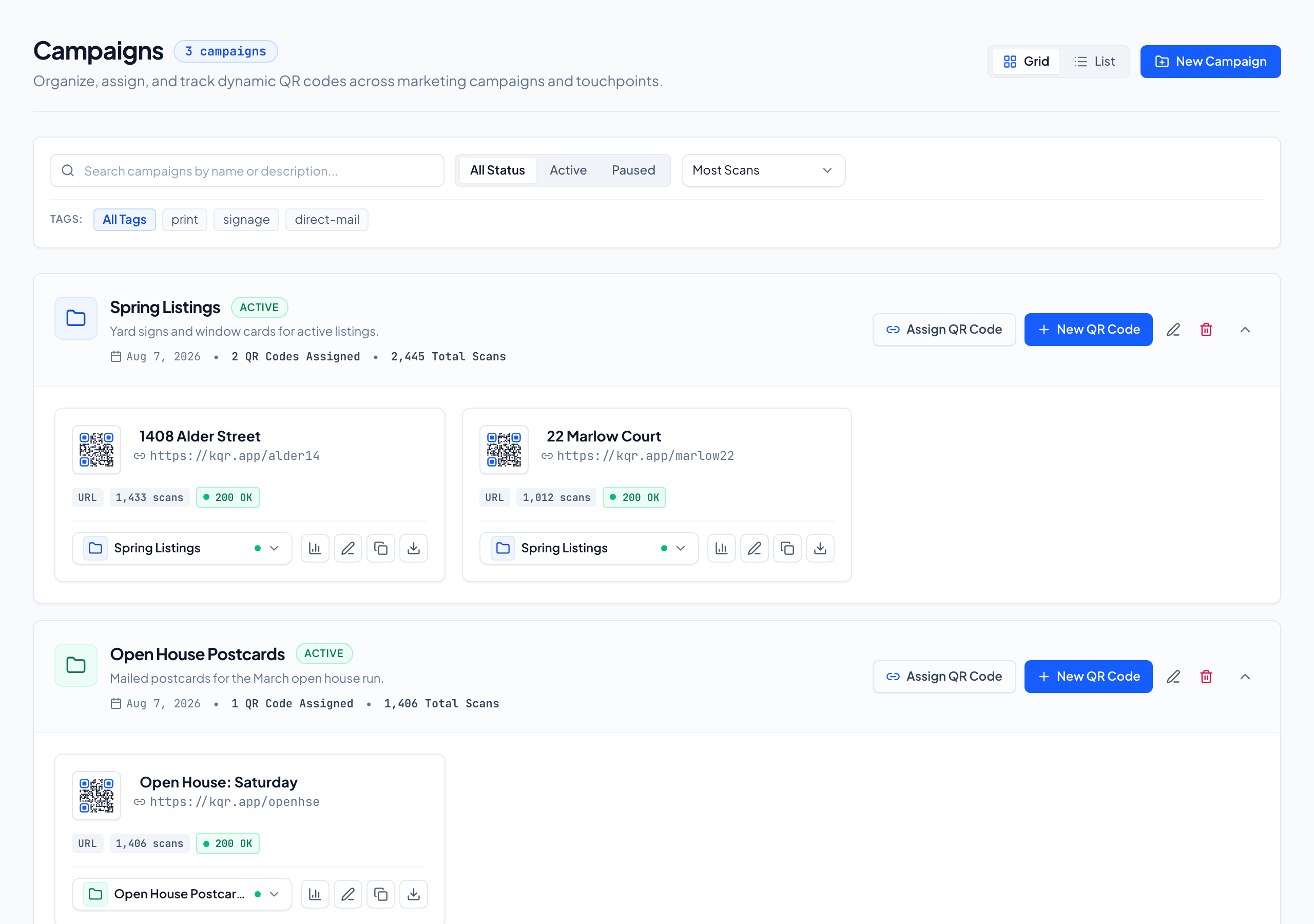
Name codes so you can read them later
Six months from now, "Flyer 2" will mean nothing. Pick a naming pattern before you create the first code and stick to it. A pattern that works for most campaigns is campaign, placement, then location or date:
Spring sale / window poster / Main StSpring sale / flyer / mailing 1Open house / yard sign / 14 Oak Ave
In KeeperQR you can also group codes into a campaign and add tags, which keeps a campaign's codes together in the list.
Put a call to action next to the code
A bare QR code asks people to scan without knowing why. A short line of text next to it does more for your scan count than any design change to the code itself.
- Say what they get. "Scan for the menu" or "Scan to see the floor plan" beats "Scan me".
- Keep it short and close. The text belongs directly above or below the code, readable from the same distance.
- Be honest about the destination. If the scan leads to a sign-up form, say so. People who expected a price list and got a form do not come back.
KeeperQR's frames can add a caption to the exported code, which keeps the text and code together when the file is placed in a layout.
Make the destination work on a phone
Every scan happens on a phone, often on mobile data and often standing up. The page it opens decides whether the scan was worth anything.
- Use a page built for mobile. Readable without zooming, with the main action visible without scrolling.
- Make it fast. A slow page on a weak signal loses people before it loads.
- Match the page to the call to action. If the sign says "menu", the scan should open the menu, not the homepage.
- Avoid login walls and pop-ups in front of the content people came for.
With a dynamic code you can fix a weak page after printing. Change the destination and the next scan goes to the new address, with no reprint.
Tag links for your web analytics
Scan counts tell you how many people scanned. Your website analytics tell you what they did next. Connect the two by adding UTM parameters to the destination URL, for example utm_source=window_poster and utm_campaign=spring_sale.
In KeeperQR's Studio, a URL code has fields for UTM source, medium, and campaign, and they are added to the destination for you.
Do not expect the two tools to agree exactly. Some people scan and close the page before it loads, some analytics tools are blocked by browsers, and scan counters filter repeat scans and bots in their own way. Compare trends between the tools, not raw totals.
Read the results fairly
Scan data is easy to misread. A few habits help:
- Compare like with like. A poster in a busy station will out-scan one in a quiet corridor. Judge a placement against how many people passed it, not against every other code.
- Use the same date range. Comparing a code that has been up for a month with one that went up last week tells you nothing.
- Look at unique scans as well as total scans. One enthusiastic person scanning five times is still one person.
- Check when scans happen. Time-of-day patterns show whether a sign works during opening hours or only when the shop is closed.
- Look at location and device. A spike from an unexpected country can mean the code was shared online rather than scanned in person.
- Wait for enough data. A handful of scans is noise. Give a placement time before you pull it.
In KeeperQR, the Analytics page shows scans over 24 hours, 7, 30, or 90 days, filtered to one code or across the workspace, with location, device, an hourly heatmap, and a CSV export if you want to do your own comparison in a spreadsheet. Link preview fetchers and other bots are filtered out of the counts.
Keep codes alive after the campaign
Printed material outlives the campaign. Flyers stay on noticeboards and posters stay in windows for months.
- Do not delete a code that is still out in the world. Point it at a sensible page instead, such as a current offer or your homepage.
- Make a new code for the next campaign rather than reusing an old one. Reusing a code mixes the old campaign's scans with the new one.
- Watch the destination. Pages get moved and campaign microsites get taken down. KeeperQR checks each dynamic code's destination daily and can email the workspace owner when one breaks.
Before any of this goes to the printer, run through the test before you print checklist, and check the print size guide for how large each placement needs to be.
Codes we never switch off to make you pay
Dynamic QR codes with real scan analytics. Free for 3 codes, no card.
Start free